Showing posts with label Laptop. Show all posts

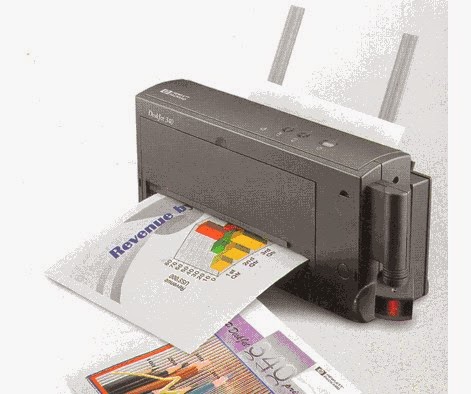
Computer printer buying tips


Computer printer buying tips

Purchasing a printer can be a daunting and sometimes confusing task. Below is additional information that will help in your purchasing decisions.

Technology

The first and foremost important consideration to consider when purchasing a printer is the technology the printer utilizes to print. Today, ink jet and laser printers are the two most popular printer technologies.
Ink Jet - Inkjet printers are an affordable and effective solution for home users and home businesses.
Laser - Laser printers are a recommended solution for businesses or networks that require speed and efficiency, and high quality resolution.
  • Inkjet vs. laser printer.

Resolution

Resolution on a printer is measured by the amount of dots per inch a printer is capable of printing. When looking at purchasing a printer, it is important to look at the DPI the printer is capable of printing.
It is also important to know that some printer manufacturers may generate their own methods through software for increasing their resolution.

Speed

Speed is another important consideration when looking at computer printers. The speed of a printer is rated in PPM, or pages per minute, and rate anywhere between 4 and 10+ PPM, depending on several factors such as if it is Black and White or Color, text only or full page. You should expect a faster PPM from a laser printer printing text than an Inkjet printer.

Ink and Toner

Ink or Toner is an important factor when purchasing a printer. Look at the below characteristics of the Ink and Toner used with the printer.
Price - By far the most important factor is price; if the printer becomes a frequently used device you may find that the price of the ink can far surpass the price of the printer. Look how much the ink will cost when it needs to be replaced.
Availability - From where can the ink or toner be purchased? Some printer manufacturers may require that you purchase the ink directly from them; and if purchased from a third-party, cause your printer warranty to become void. Verify that the ink can be purchased from a third-party and if so, from whom.
Type - See what ink or toner used with your printer, and for users considering an Ink Jet printer, see if the printer accepts separate color cartridges. Some manufacturers may include all the cartridges as one cartridge, causing you to have to purchase all the available colors for one color that may be out. In addition, see if the cartridges are just ink or ink and nozzles. Cartridges with ink and nozzles will cost more than those that have just ink.

Cost per page

Cost Per Page - The measurement of the ongoing price of the printer after its initial purchase. It is important to look at the cost per page and see how much you may be paying for the amount of printing you expect to do. You can expect to pay less for a laser printer than an ink printer when looking at Cost Per Page.

Other considerations

Paper handling - The method of how the printer handles and distributes the paper can be an important consideration when looking at printers. Many Ink Jet printers well feed paper through a slot on the top of the printer, while laser printers will use a tray method of feeding the paper to the printer. Depending upon the amount of printing you expect to have and the paper you plan on using, such as a paper envelope, will help make your decision when purchasing a printer.
Options - When purchasing a printer, look to see if the printer requires additional add-ons that may be required; this can also factor into the overall cost of the printer. These add-ons can include but are not limited to such things as cables, trays, ink, software, etc

Price range

Price range - The price range can vary depending upon the quality of the printer and brand of the printer. Below is a price range of what to expect when purchasing a printer.
Ink Jet Printer: $100 to $400
Laser Printer: $300 to $2,000

Ready to buy

Once you have reviewed the appropriate information and believe that you are ready to make a purchase of a printer, ensure that the source that you plan on purchasing the printer from is a reputable source and you have reviewed our section on what to look out for when purchasing over the Internet.
Computer Hope is ready to setup and help you with issues you may encounter during the purchase or installation of your printer, regardless if you purchase through us or another vendor.
To help support Computer Hope you can purchase directly through our well-known associate, Amazon. Click the below browse button to begin browsing through the printer section.

Computer motherboard buying tips

For users planning on building a computer, a motherboard can be a confusing and sometimes frustrating decision. Below we have listed some considerations and tips when looking at purchasing a computer motherboard.

Type

The type, or form factor, of the motherboard is a crucial consideration when looking at a motherboard. There are various form factors and not all computer cases can accommodate each form factor. Today, the most commonly found and used motherboard is the ATX motherboard. When looking at the motherboard, make sure your case supports your motherboard form factor. Additional information and help with the form factors can be found on our motherboard page
When looking at who to purchase a motherboard through, consider all different brands of motherboards and vendors who sell those motherboards, as all motherboards have positive and negative reviews. A listing of motherboard links and manufacturers can be found on the motherboard section of our network.

Considerations

CPU socket or slo
There are a wide variety of different CPU Sockets and Slots. When looking at purchasing a motherboard, ensure it is compatible with the CPU you have or that it will be compatible with the CPU you plan on purchasing.
Additional information about CPUs and the Sockets or Slots can be found on our CPU buying tips page.
Drive connectors
Drive connectors can be an important consideration when purchasing a computer. Determine the interface of the drives you plan on using, and ensure that the motherboard supports that interface or has the connector for that interface. An example of such an interface is IDE, EIDE or SCSI.
Additional information about hard drive buying tips can be found on our Hard drive buying tips page.
Additional information about CD-ROM buying tips can be found on our CD-ROM buying tips page
Memory slots and type
Today, there is a wide variety of different types and speeds of memory. When looking at purchasing a motherboard, ensure that it is compatible with the memory you currently have or plan on purchasing. 
Additional information about Memory buying tips can be found on our Memory buying tips page.
Slots
The available slots can be an important consideration. Below is a listing of the different slots used in motherboards.
  1. PCI Express - The latest and greatest slot and bus type.
  2. AGP - AGP, or Advanced Graphics Port, is used for video cards as a replacement for PCI.
  3. AMR - AMR, or Audio Modem Riser, is a slot that is used for Audio and Modem cards and is found on some motherboards. This is not a critical slot and has been replaced by the CNR.
  4. CNR - CNR, or Communication and Network Riser, is a slot that supports audio, modem, USB, and Local Area Network cards. This slot is highly recommended for any user building a large amount of computers as the cards are cheaper than the standard PCI or ISA cards.
  5. ISA - Today, ISA is becoming obsolete and is not found on all motherboards. Unless you have old ISA cards that need to be used, it is recommended you purchase a new motherboard with no ISA slots and additional PCI slots.
  6. PCI - The most widely and commonly used slot.
  • Additional information about each of the above computer bus types.
  • Computer video card buying tips page.
  • Computer sound card buying tips page.
  • Computer modem buying tips page
Jumpers
Jumpers are overlooked when considering a motherboard; however, they can be an important consideration, especially for users who plan on overclocking their computer. Below is a listing of some of the jumpers that should be asked about or known when purchasing a computer motherboard.
  1. Does the motherboard have a clear CMOS jumper?
  2. Does the motherboard have CPU settings jumpers? Or is it configured through CMOS? Is it auto detect?
  3. Does the motherboard have onboard video or sound? If yes, can they be disabled with jumper or is it done through CMOS? Note: either way is fine as long as it can be disabled.
USB ports
While all motherboards today have USB ports, ensure that the motherboard you plan on purchasing has USB ports.

Effects

Upgrading and replacing a new computer motherboard may have the below effects on the computer.
  • Speed up the overall performance of the computer. May not be noticeable.
  • Allow for new improved hardware to be added into the computer.

Motherboard installation

Additional help and information about installing a computer motherboard and other computer hardware can be found through our Installation section.

Computer monitor buying tip


Purchasing a computer monitor can be one of the most important pieces of the computer since it is what you are going to be staring at while on the computer and a poor monitor can cause eye strain and a bad experience.

Technology

CRT - Today, one of the most commonly used technologies for computer monitors. CRT, or Cathode Ray Tube, is a technology much like what you will find on most TVs. CRT monitors are an affordable solution; however, they are bulky and very heavy.
Flat Panel and LCD - LCD, or Liquid Crystal Display, monitors are similar to what is found on portable computers. LCD monitors overall display much sharper of an image, are lighter and more space efficient; however, they are much more of an expensive solution for desktop displays.
  • Computer plat panel display buying tips section.

Size

When considering purchasing a monitor utilizing the CRT technology it is important to consider the following:
Dimensional Size Size can be one of the more important considerations when purchasing a computer monitor. Monitors are available in 15",17", 19", and 21." Like most things, larger is more expensive. The larger the screen, the more viewable space you have to work with. We recommend users that plan on utilizing their computer for more than one-two hours a day and have the available space purchase at least a 17" monitor. Users who plan on using the computer for graphic art or cad, we highly recommend utilize at least a 21" monitor. Finally, users with little space or plan on using the computer for word processing and e-mail may want to consider a 15" monitor.
Viewable Size - The viewable size of the monitor is an important consideration and can vary by manufacturer. The viewable size is the size of the viewable area and not the complete monitor.

Dot and stripe pitch

When purchasing a monitor, Dot Pitch or Stripe Pitch is an important consideration. Dot Pitch measurement is found on most monitors and defines the amount of space (in millimeters) that separates two adjacent pixels that are the same color. The smaller the Dot Pitch, the sharper the image. We recommend that when purchasing a monitor the Dot Pitch be no bigger than 0.25
Stripe Pitch is a measurement used with Trinitron or Diamondtron monitors and is a measurement (in millimeters) that separates two like-colored stripes. The lower the Stripe Pitch the higher the quality of image.
When looking at monitors you should only see a Dot Pitch measurement or a Stripe Pitch measurement. You should not see both of these measurements measuring the same monitor.
Finally, these two different measurements should not be a measurement comparison when deciding between two or more monitors, each technology is different.

Resolution

Resolution is the maximum resolution of pixels capable of being shown horizontally x vertically. Be cautious when purchasing a monitor at any size that advertises a large resolution size such as 1,600 x 1,200 for a 15" monitor.
Some monitor manufacturers may allow for such high resolutions at a high cost but most users never need such resolutions. As the monitor increases in size, the image display will decrease; below is a listing of a usable resolution limit by the size of the monitor. These sizes can be debated but are the standard and most viewed resolutions.
15" 800 x 600 or 1,024 x 768
17" 1,280 x 1,024
19" 1,280 x 1024
21" - 1,600 x 1,200

Refresh rate

The refresh rate is a measurement of the number of times per second the screen is redrawn. This measurement is measured in hertz and it is recommended that a monitor have at least a refresh rate of 75 MHz at the resolution you want to run at.

Controls

When purchasing a monitor, it is important to look at the available controls of that monitor. The controls allow for modification or adjustment of the viewable settings.

Price range

When purchasing a monitor, expect to pay much less than an LCD or Flat Panel display. In addition, the larger the monitor the more money you can expect to pay. When purchasing a monitor, expect to pay the following by size.
15" display: $200 or less
17" display: $200 to $400
19" display: $400 to $1,000
21" display: $700 to $2,000

Ready to buy

Once you have reviewed the appropriate information and believe that you are ready to make a purchase of a new monitor, ensure that the source that you plan on purchasing the monitor from is a reputable source and you have reviewed our section on what to look out for when purchasing over the Internet.
Computer Hope is ready to setup and help you with issues you may encounter during the purchase and installation of your monitor regardless if you purchase through us or another vendor.
To help support Computer Hope you can purchase directly through our well-known associate, Amazon. Click the below browse button to begin browsing through the video card section.

Computer modem buying tips

Today, with the set standards of V.90, purchasing a modem is a much less confusing task and sometimes considered easy.
Before purchasing a modem, take the below into consideration. Today, with the popularity of the Internet and multimedia over the Internet, broadband is becoming widely available. If available in your area, you may want to consider purchasing a broadband solution, such as DSL available through a phone or third-party company, Cable available through your local cable provider, Satellite available through a third-party, or through a large ISP such as MSN or AOL.
If a broadband connection is not available in your area, below are some recommendations to consider when purchasing a computer modem.

Standards

Originally, when the 56k connection was introduced, there was not a set standard between two major modem manufacturers, causing there to be two different technologies: X2 and KFlex. Each of these technologies allowed for a modem to connect at higher speeds, but only if the Internet Provider supported the technology. Because of the difficulties and issues with these two different technologies, one technology emerged out of the two, called V.90. This technology allows users of any brand of modem to connect at higher speeds.
Today, all modems (purchased new) are V.90 and this is no longer a concern. Additional information and history about each of these technologies can be found on our Modem Standard page
.

Interface

Interface can be an important when considering purchasing a modem. It is important that your computer has the available connections and resources when purchasing a modem.
PCI/ISA (Internal) PCI/ISA modems are modems that are found in most computers today. These modems are installed internally into the computer with an available connection on the back of the modem for the phone line. Before purchasing an internal modem make sure the computer has the required slot. In addition, verify that your computer has the available resources. You can sometimes have difficulties installing a modem if a serial device, such as a Serial mouse or Serial PDA, is connected to the computer.
Serial (External) - A serial modem connects to the serial port located on the back of the computer. These modems are easy to install; however, they can cost more than an internal modem as you pay additional money for the plastic cover. Before purchasing a serial modem verify your computer has an available serial connection on the back of the computer; devices such as a serial mouse may already be utilizing your serial port. Some computers may have two serial ports; if this is the case and only one serial port is currently being utilized, verify that the second port can be enabled or is already enabled in CMOS.
PC card (PCMCIA) - Solution used with portable computers, PC Card modems are fairly cheap and relatively easy to install in the computer.
If a modem is already present in your portable computer but you want to upgrade or the internal modem has gone bad, it is important that you verify the pre-existing modem can be disabled before installing the new modem.
USB - A new solution, USB allows a user to install up to 127 devices on the computer and is available for PC and Mac. Before purchasing this solution, verify that your computer has a USB connection. If no USB connection is available, an additional card needs to be installed in the computer.

Connection

Internal, External, or USB modem - Today, all modems have a RJ-11 connection, which is a standard phone connection, on the modem. If important to you, verify that the modem has two available RJ-11 connections. One of these connections will connect the modem to the phone and the other can be used for an office phone. This can be very useful for a home or office computer that may need a phone next to it.
PC Card Modem - PC Card Modems used with laptop and other computers have different methods of connecting to a phone line. X-Jack and a Dongle are two of the more popular connection types used for PC Card Modems. If you are purchasing a new PC Card Modem make sure the connection works for you.

Internet availability

Unfortunately, not every location in the world has the availability to connect to the Internet. If you live in a rural area, make sure you can connect to an Internet service locally without incurring any long distance charges.

Price range

The price range of a modem is ranged by the speed of the modem, if it is external or internal, and the brand of the modem.
Internal Modem: $80 and below
External Modem: $100 to $150
USB Modem: $140 to $200
PC Card Modem: $50 to $200

Ready to buy

Once you have reviewed the appropriate information and believe that you are ready to make a purchase of a computer modem, ensure that the source that you plan on purchasing the modem from is a reputable source and you have reviewed our section on what to look out for when purchasing over the Internet.
Computer Hope is ready to setup and help you with issues you may encounter during the purchase and installation of your modem, regardless if you purchase through us or another vendor.
To help support Computer Hope, you can purchase directly through our well-known associate, Amazon. Click the below browse button to begin browsing through the modem section.

Internet on your phone using Bluetooth


Ok I found this other guide which is more easy for newbies to follow. I ahvent checked it on my 6600. Will do the testing soon. Those of you on N-gage & 3650 please try too and post a new topic outside this FAQ section about how it is.
this will work on most s60 phone I guess! it has been tested on an NGAGE and on N3650!

step 1:

Creating an access point on your phone!
tools\settings\connection\access points\options\new access point>default settings...
these are the settings u need there..
Connection Name : Anything (sugestion ADLS or PCGPRS something u remember well cuz u'll need it later!)
Data Bearer: GPRS
Access Point Name: The name you gave to your bt connection when pairing up with the computer...
Username : None
Password : No
Authentication : Normal
Gateway IP Address : 0.0.0.0
and that's all on this on this part..

then go to:

tools/settings/connection, and select GPRS
set the GPRS connection to "when available", and the access point to "none".
The settings on your fone are done! now... the next step;
Create a serial port connection from ur pc to ur phone (u've done this before if u ever used Pcsuite from nokia), this serial connection must be on everytime you want to use your pc internet connection as a gprs connection for ur phone!!
Install the software u need to surf the web (opera, netfront, agile messenger for chat, etc..)
My advise to you is to use netfront, the options are pretty cool and it uses less memory meaning u can still run other program such as agile at the same time (it crashed my 3650 when I tried to do it with opera)..
Voil? ur ready to use ur phone to surf and chat for free!!
hope this helped you and that is simple and clear!! any question u know where to post, this will be updated if many doubts come up.
ps. works with ngage arena games!!!
Enjoy!

Laptop buying tip


Laptop buying tip


Purchasing a home or business laptop can be a much more confusing and sometimes frightening experience as most users today have some experience with a desktop computer but not as many have experience with a laptop, what is properly known as a portable computer. Portable computers are an excellent solution for anyone who needs to be portable and have all of their information on a small computer. Below is a listing of help and tips when considering to purchase a laptop computer. 

What to look for

When purchasing a computer, it is likely that you are going to have a general idea of what you may like in the computer or how you would like to configure the computer. Below is a listing of the various components likely to be found in a computer, and recommendations and tips when considering any of the below components.
Battery usage
Determine how long the battery is expected to last under normal use. Many manufacturers will indicate a battery usage time but this may be at the lowest possible settings; ensure that the manufacturer clarifies what the standard battery usage life is when using the portable computer in all power modes.
Display
All portable computers come with a display. While it is almost always possible to hook up an external monitor when traveling with the laptop, the display is an important consideration. When looking at the display, ensure it is large enough for your needs. A very easy method of reducing the cost of the laptop is to reduce the size of the screen, unless price is an important consideration we highly suggest that you purchase a laptop with at least a 12" or lager LCD and recommend an LCD size of 14"
Complete buying tip information on Flat Panel or LCD solutions can be found on our flat panel buying tips page.
Drives
Drives are sometimes overlooked when considering a portable computer but can be an important consideration. Portable computers can come with various drive configurations, for example:
  • One drive bay where the CD-ROM and the Floppy drive are interchangeable. For users who utilize the floppy drive often, this may be an issue; however, for other users who do not utilize the floppy, this may be a more appropriate solution as the computer will be lighter and thinner with one drive bay.
  • Two drive bay portable computers have a floppy solution as well as CD-ROM solutions. These computers will be a less expensive computer when compared to the other solutions; however, it is the always the heaviest of all the solutions.
  • No drive bay portable computers allow for a laptop to be extremely light and utilize external drives instead of internal. Pay close attention to the price of these laptops; while it may appear to be a portable solution, many manufacturers will charge you an additional price for the external drives, which will eventually be needed.
Finally, some users may also want to consider different media solutions. For example, many laptops allow for a standard floppy drive or an LS120 drive. The LS120 drive can read floppy diskettes and at the same time be used as a backup storage device as it can store up to 120MB on a LS120 diskette. Additionally, consider the option of a DVD* or CD-RW drive as opposed to a CD-ROM drive.
*If you are considering a DVD solution, verify if the DVD comes with hardware or software decoding. Hardware decoding for laptops is accomplished by using a PCMCIA card and will add onto the overall price of the laptop.
Hard drive
Hard drives have and always will be an important consideration to think about when purchasing a new portable computer. Like a standard computer, the hard drive will be the destination of all your files and information, and if that drive is to become full, that drive must be replaced or another external drive needs to be added to the computer. When looking at the space of the hard drive, always get the maximum size hard drive, considering you will eventually always run out of space. 
Complete buying tip information on hard drives can be found on our hard drive buying tips page.
Lock
Does the portable computer include any locking system? If yes, what locking system is included? This can be important for users who are on the road.
Memory
Memory is and has always been an important consideration when looking at purchasing a computer. Determine the amount of memory included in the computer as well as verify if that memory can be upgraded in the future. The more memory the computer has, the more efficient the computer is capable or running.
Complete buying tip information on computer memory can be found on our memory buying tips page.
Modem
If a modem is required, ensure that a modem is included with the portable computer. In addition, verify if the modem is an internal or PC-CARD (PCMCIA) modem as you may require all the available PC-CARD slots in the future. PC-CARD modems are type II that for most computers akkiws for an additional type II to be connected. 
Complete buying tips and information on modems can be found on our modem buying tips page.
Network Card
If a network connection is required, ensure that a network card is included with the portable computer. In addition, verify if the network card is an internal or PC-CARD (PCMCIA) network card as you may require all the available PC-CARD slots in the future. Network PC-CARDs are type II that for most computers allows for an additional type II to be connected. 
Complete buying tips and information on network cards can be found on our network card buying tips page.
Processor
The computer processor is and will always be an important consideration when purchasing a computer. Today, with multiple CPU/Processor manufacturers, it may be more confusing as well as more cost efficient to look at the different processors available.
Complete buying tips and information on computer processors can be found on our CPU buying tips page.
Sound card
Sound cards are important when looking at purchasing a computer; however, the majority of all computer users will find that most standard sound cards will suit their needs. However, some users may enjoy purchasing more advanced sounds cards that will increase the amount of speakers that can be used and in some games and programs and the sound quality and capabilities.
When looking at the sound aspect of a portable computer, many laptops do not have sufficient sound and will require external speakers or headphones. Ensure that the sound quality meets your needs.
Weight
Weight is another important consideration when considering a portable as the computer will be carried; the lighter the portable computer, the more easy it will be to carry.
Video card
Video cards are becoming an extremely important factor when purchasing a computer. While this may surprise some, a video card can make or break a computer when it comes to playing games on the computer. Most games today require additional video memory as well as special video modes such as OpenGL. With a video card with little video memory or without these modes, the computer will be unable to play these games. In addition, the advances in video cards can dramatically increase the user enjoyment of the game being played.
Complete buying tips and information on video cards can be found on our video card buying tips page.

Brand of computer

When looking at purchasing any brand of portable computer you will hear good and bad stories. Regardless if the story is good or bad, these stories are always based on the experience of that user. While it may be true that the user had a bad or terrible experience with that computer, all computer manufacturers have had users who have had a bad experience and there is no such thing as a bad or perfect computer manufacturer. Below is a listing of various things to consider when purchasing a computer, and in some cases, how to tell the good from the bad and help allow you to purchase the portable computer that will suit your needs.
Add-ons
Some computer manufacturers may try to sell additional add-ons when purchasing a portable computer. Unless you have done your research on the additional add-on, do not consider the add-on. While in some cases it may be beneficial to get a printer, scanner, camera or PC Cards with a computer, you may be paying premium for the additional add-on, or in the case of the printer, you may have to pay premium on the ink in the future. Do you research, ensure that if you get an additional hardware or add-ons that the hardware will suit your needs and that it does not end up being something that is not going to be used. 
Free add-ons? Some computer companies may entice you into purchasing a computer by giving you free add-ons. These add-ons may be advertised as free, however, ensure or ask if the add-on price is not just being added to the overall computer price.
Documentation
While most manufacturers today are reducing the amount of documentation included with their computers, an excellent question, especially if the computer is being purchased by a new computer user, is "what documentation is included with the computer?"
All computer manufacturers will include some paper documentation or paper inserts; however, does this information include documentation about upgrading the computer in the future? How to connect the cables to the computer? Documentation on how to use the software such as the additional included software?
Note: It is important to distinguish between paper documentation and on-line documentation. On-line documentation, which is being found more today, is information that is either locally on the computer or can be accessed via the Internet. If the information is available over the Internet, see how that information looks and if it suits your needs before purchasing the computer.
Location
We use location to describe different topics. First, what is the location of where the computer is purchased: If the computer is purchased at a local retail store, can the computer be returned to that store if unsatisfactory? If the computer is purchased through mail order or directly through the computer manufacturer or reseller, where can the computer be returned if unsatisfactory?
Second, can the store location of where the computer was purchased service the computer? If not where is the closest location to where the computer can be serviced?
Third, if the computer is purchased directly from the computer manufacturer and is shipped through mail, how is it shipped? What is the time period for the computer to arrive to your destination? What happens if the computer is damaged during shipping?
Refurbished
Refurbished is a term used to describe a computer or a hardware device or component in a computer that has been used; however, it has been looked at and determined to be in working order. However, because the product has been used or purchased, it cannot be sold as new.
Refurbished computers have a lower price and are a good deal for users looking for a better deal. However, compare the price of the refurbished computer to a new computer as well as to review all of the tips on this page as all the same rules, tricks, and tips still apply.
Service
Service is an important consideration to look at when looking to purchase a computer, new or used. The service is how many companies describe the repair of a computer if it or a component within it is to become broken. Below is a listing of recommended services.
  1. Is the service onsite, meaning a technician will come to your location to replace or fix a bad component. If the service is onsite, is it for the complete time of the warranty?
  2. If onsite is not offered, what is and for how long?
  3. Can the computer be taken to a local service center? If yes, what is the closest authorized service center?
  4. What is the time frame the service takes to occur? For example, if the computer has a bad component, what is the time it takes for a technician to come onsite and replace that component, or what is the time it takes to have the computer sent in to be fixed? Finally, if that time frame is not accomplished, what is the company willing to do? Would they be willing to provide you with a loaned computer?
  5. Because the computer is a portable computer, is International Service available? This allows users who may be in a different country to have their computer fixed in that country.
Software
Software, for many computer users especially new users, is thought to be an important consideration when purchasing a new computer. Granted there is software that we highly recommend looking for when purchasing a computer, such as word processor or spread sheet program, some computer companies may over hype the software package. Below is a listing of what to look for when looking at the software included with a computer.
  1. Does the software include Microsoft Office or Corel Suite? These packages allow you to have a word processor and a spread sheet. For the majority of all users, this should be an important consideration.
  2. Is the software full versions of the software or is the software demo programs or shareware programs?
Support
While you can always contact Computer Hope for support, manufacturer support for most users is another important consideration, as if an issue arises with the computer, you must be able to be able to contact a support representative. Things to consider when looking at the support options of a computer are shown below.
  1. Is support open 24 hours, 7 days a week? If not, what are the hours?
  2. Is support open on holidays? If not, what days are it closed?
  3. What support options are available? Phone? E-mail? Web? Chat?
Upgrade
While this option may not be considered at first when purchasing a computer, it is an important consideration. Below is a listing of different options to look for when looking to upgrade a portable computer.
  1. What can be upgraded in the computer? RAM? CPU? Hard Drive? If available to upgrade, what are the maximum amounts or is it specified within documentation provided with the computer?
  2. Are the upgrades something that the end-user can do or does it require a service center to install?
Warranty
Finally, what warranty is offered by the computer manufacturer? How long is the warranty? Does the warranty cover both hardware and software issues? 
Warranty can cause frustrations for most users. We highly recommend that a computer only be considered if it has at least a one-year warranty. Many cheap computers only come with a 90 day warranty; meaning if a part goes bad, you pay for the part as well as the service. This may not be an issue for users who just need a cheap computer and are willing to replace parts and service the computer.

Scams

Unfortunately, like anything, it is possible to be tricked or for computer companies to scam you. Below is a listing of what to look for when purchasing a computer.
Get what you pay for
Make sure you are paying for what you get. It has been known that computer companies may list a processor being a specific speed but may actually have a different speed into the computer. This, unfortunately, can be very easy as any user can 'over clock' a processor, making it appear as one speed but in reality being a completely different speed. For example, you may buy a 733MHz processor but instead get a 500MHz.
To determine the processor speed, open the computer and look at the processor itself. Do not look at the processor through a software program or through BIOS as these values can be changed or tricked.
Legal software
When purchasing a computer, ensure it comes with legal software. Many end-users or small computer companies who build or sell computers may not provide you with legal copies of the software, which is illegal. Verify that the software that came with your computer is on a standard CD and not a burnt CD. A burnt or home-made CD will be a different looking CD and have a gold or green bottom. Ensure that if the software requires a license or registration number that it was included with the computer. An example of software that includes these certificates is Microsoft Office and Windows

Stolen Mobile Phones Keep It Safe

 Stolen Mobile Phones Keep It Safe
Lost and stolen mobile phones keep it safe and know what to do if you lose it


If you lose your mobile phone, or have it stolen, not only do you have to deal with the inconvenience of not having your phone, but you could be paying for someone else?s calls!
PREVENTION
Prevention is better than cure.
Reduce your phone?s appeal to thieves and assist in its recovery if it is lost or stolen:
1) Treat your phone as you would any valuable item: Even if you got your handset as a $0 upfront deal?, this does not reflect its true cost. Handsets are expensive - they can cost more than $1000.
* Be discrete. Keep your mobile on you. Never put it down in a public place or leave it unattended.
* Switch to vibrate mode in circumstances where a ring tone might attract the attention of a thief.
2) Use your phone?s security features: Your phone has security features which you can use to stop others using your phone for example, you can set a Personal Identification Number (PIN) number which must be entered before anyone can use the phone. Read your handset User Guide to find out what features your phone has and use them. Even if your phone isn?t stolen, someone might be tempted to borrow your phone and make a few expensive calls without your knowledge.
3) Name it: Some form of personal identification on your phone can deter the would-be thief. Consider engraving your initials on your phone and the battery, and ? if you have one also including your driver?s license number.
4) Know your IMEI: Every mobile phone has a unique 15-digit electronic serial number, known as the International Mobile Equipment Identity (IMEI) number. Record your phone?s IMEI number and keep it in a safe place in case your phone is lost or stolen. You can check your IMEI number by dialing *#06#.
5) Insurance: Don?t assume your phone is covered in your (or your parent?s) home contents insurance. Check and consider insuring it separately, if necessary. Remember that even if you got the phone for ‘$0 upfront?, this doesn?t mean it was free it means the cost was absorbed in the overall contract price. You may not be able to get a replacement phone for $0 upfront.
LOST OR STOLEN
If your phone is lost or stolen:
6) Notify your network carrier AND the police immediately in the event of loss or theft. Tell them your IMEI number and any other identifying features on your phone (e.g. engraved initials). Your carrier can use this number to block your phone from all networks once you report the phone lost or stolen, making it useless to any thief. Importantly, this also ensures you?re not paying for any calls made by the thief. If the handset is subsequently found, the IMEI block can be easily removed as long as you can prove you?re the original, rightful owner of the phone

Computer processor (CPU) buying tips

Purchasing a processor is an important consideration when building or buying a computer. Below we have listed several considerations and additional information about what to ask and look for when purchasing a processor directly or already installed into a computer.

Type

The processor can be an important consideration for users who are building a computer. Today, there are three main processor manufacturers: AMD, Cyrix, and Intel. Each of these companies have good and bad reviews, and really each of them are very close in compatibility and reliability. When considering any of these processors verify the motherboard is compatible. For example, if an Intel motherboard is purchased or currently installed into the computer, purchase a Intel Processor, an AMD processor only works on a motherboard designed for AMD.
  • Computer CPU, heat sink, and fan manufacturer links.

Considerations

Heat Sink
It is highly recommended that all processors have a heat sink. The heat sink helps to allow for the processor to remain cool and therefore run more efficiently. A computer processor with a missing, bad or failing heat sink can cause the computer to lock up, cause errors or encounter other issues. 
When looking at a processor, also consider the heat sink that will be attached to that processor and ensure that the processor being purchased is compatible with that heat sink.
Additional information and help on computer heat sinks can be found on our heat sink page.
Interface
Today, there is a wide availability of interfaces the CPU may connect to. Below is a listing of each of the interfaces and a brief description on each of them.
Slot
Slot A
The slot was first used and introduced by Intel when they released the Pentium II processors. This slot was designed to allow users to install the processor into the computer. However, because of the additional cost considerations, Intel has now gone back to the Socket what is now known as the FC-PGA socket. Computers that have the Slot are the Intel Pentium II and early versions of the Intel Pentium III.
The AMD processors use the Slot A interface
Socket
FC-PGA
Flip Chip
Coppermine
The socket is the most commonly used and found interface for processors today. The socket has been used in all Intel processors preceding the Intel Pentium II and is now being used for the Intel Pentium III and above processors with the name FC-PGA, which is short for Field-Programmable Gate Array. The FC-PGA is a socket and not a slot processor and is also known as the Intel Coppermine or the Flip Chip.
Slocket
Slocket, which is a slot card, can be used to connect a socket or FPGA processor. This is not an actual interface but can be an option for users who have a slot adapter with a computer that supports speeds of a socket or FPGA processor.
When looking at the interface of the CPU, it must match that of what is on the motherboard unless it is possible to use a Slocket. Additional buying tips on computer motherboards can be found on our motherboard buying tips page.
Names
The names of the processors can be very confusing and are used as a method of helping to sell a computer or computer processor. Below is a listing of some of the more commonly used names and a brief description on each of them.
Intel family names:
Pentium - The 80586, or P5, the Pentium is the generation above the 486 processor line.
Pentium Pro - Chip designed to help speed up Windows 32-bit software
Pentium with MMX - Processor with additional 57 new instructions and enhanced speed to graphics and multimedia software. MMX is now included in all Intel processors that have been released after this processor.
Pentium II and III - The first of the Intel processors to include the Slot adapters. These processors were the next generations of the Intel Pentium processor.
Intel Coppermine - The Socket (FC-PGA) version of the Intel Pentium III and IV.
Intel Flip Chip - Another name for the Intel Coppermine.
Intel Celeron - The low end Intel processors designed to help lower the prices of the computers by reducing or at first eliminating the level 2 cache.
Pentium IV - The next generation of Intel processors, these processors were over 1GHz and were the FPGA processors.
AMD family names:
AMD K6-2 - Socket 7 processor with the 3DNow! technology and first to have the 100MHz bus.
AMD K6-3 - K6-2 chip with Level 2 cache memory that runs at the speed of the CPU.
AMD Duron - Like the Intel Celeron, the AMD Duron is an affordable solution processor allowing for the price in the overall computer to drop.
AMD Athlon - AMD generation with features such as the 200MHz bus speed
AMD Thunderbird - The latest AMD processor, this processor is the socket version.
Speed
The speed of the processor is an important consideration as it is what will rate the speed of the computer and help the computer run faster overall. 
When looking at the speed of processors available, we highly recommend that you do not purchase or consider purchasing a processor that has just been released. The price of the processor will be at a premium price and if you give that processor 2-4 months it will drop in price dramatically.

Effects

Upgrading the computer processor may have the below effects on the computer.
  • Allow for programs that may require steeper processor requirements to be run.
  • Help the computer or computer programs speed in load and opening time. Note: In many cases this may not be noticed or will not be dramatic.

CPU installation

Additional help and information about installing a computer processor and other computer hardware can be found through our Installation section.

Computer CD buying tips


Computer CD buying tips
Purchasing a CD-ROM drive is a relatively easy task but can involve some considerations when purchasing.

Technology

Before considering purchasing a CD-ROM, it is also good consider the other available options.
CD-R - CD-R, or CD Recordable, drives allow you to do everything that a standard CD-ROM is capable of doing with the added ability of creating your own CDs. An excellent solution for anyone that is in need of a CD-ROM and backup solution. Tips on buying these drives can be found on our CD-R and CD-RW buying tips page.
CD-RW - Like a CD-R drive, a CD-RW, or CD Read/Write, drive allows you to do everything that a standard CD-ROM is capable of, as well as read and write to a CD-RW disc thousands of times instead of once like a CD-R drive. While a little more expensive, this is another great solution for backups. Tips on buying these drives can be found on our CD-R and CD-RW buying tips page.
DVD - DVD, or Digital Versatile (video) Disc, allows a computer to not only do everything that a standard CD-ROM drive is capable of doing, but at the same time is capable of reading DVD Discs and DVD movies. For users who plan on playing games or watching movies on their computers, this is an excellent addition. Tips on buying these drives can be found on our DVD buying tips page.

Interface

The first and foremost important consideration when purchasing a CD-ROM is the interface that the CD-ROM utilizes, such as IDE, SCSI, USB, Parallel or PC-Card.
IDE/EIDE The most commonly used interface with IBM computers, IDE/EIDE/ATAPI interface is found on all IBM compatible motherboards. This interface allows for a total of four devices to be connected.
When considering purchasing an IDE/EIDE/ATAPI CD-ROM drive it is important to verify that you have the available connections for the device.
SCSI The only method with Apple computers and commonly used interface with IBM computers, the SCSI interface allows for a total of seven devices to be connected to the computer and is a faster solution than the IDE/EIDE interface.
If you are user of an IBM compatible computer, it is important that you ensure your computer has a SCSI interface already present in the computer. If not present, you need to install a SCSI card before being able to install a SCSI CD-ROM drive.
USB The USB interface allows a user to install a device and supports up to 127 devices.
Before you can install a USB CD-ROM drive, it is important for both IBM and Macintosh users to verify that a USB port is present on the computer. If not present, an interface card needs to be installed.
Parallel Solution available for PC computers, Parallel CD-ROM drives allow users that may not have the available resources or may have a portable computer to connect a CD-ROM drive.
PC-Card (PCMCIA) Excellent solution for users utilizing an older laptop that does not have a CD-ROM drive to connect a CD-ROM drive to their computer.

Transfer rates

Transfer rates can sometimes be a misleading when looking at purchasing a CD-ROM drive. The transfer rate of a CD-ROM drive is how fast a CD-ROM drive may be able to access the data from a CD. This speed is only going to be noticeable when installing a program or copying large amounts of data from a CD.

Price range

For a CD-ROM drive, not to be confused with a CD-R, CD-RW or DVD drive, the price can vary depending upon the speed and the interface the CD-ROM drive uses.
Standard IDE/SCSI CD-ROM Drive: $50.00 - $200.00
Parallel CD-ROM Drive: $150.00 - $300.00
PC Card and PCMCIA CD-ROM Drive: $100.00 - $300.00

Ready to buy

Once you have reviewed the appropriate information and believe that you are ready to make a purchase of a computer CD-ROM, ensure that the source that you plan on purchasing the CD-ROM from is a reputable source and you have reviewed our section on what to look out for when purchasing over the Internet.
Computer Hope is ready to setup and help you with issues you may encounter during the purchase and installation of your CD-ROM, regardless if you purchase through us or another vendor.
To help support Computer Hope, you can purchase directly through our well-known associate, Amazon. Click the below browse button to begin browsing through the CD-ROM section.

CD drive installation

Additional help and information about installing computer CD drives and other computer hardware can be found through our Installation section.

Backup Of Your Phone Or Laptop Battery

Increase And Regain The Original Backup Of Your Phone Or LAPTOP Battery

 Backup Of Your Phone Or Laptop Battery

receiving a lot of mails from some readers asking on how to deal with the weak battery problems of their laptops and mobile phones.
As day by day their mobile and laptop batteries are becoming more and more weak so the backup time of the battery decrease gradually.
Why Battery Backup Time Drops ?

This occurs mainly due to the rough usage and improper charging of the battery at multiple times for a very short interval or also due to the extensive charging of the battery for a long interval of time.
How To regain the original increased backup time for your laptop and phone batteries.
1. Firstly drain your phone or laptop battery completely until the device gets shutdown due to battery.
2. Now simply charge your battery for a fixed time according to the manuals provided with it at the time of purchase.
3. Repeat the step 1 and step 2 for about 2 times a day fro 3-4 days.
If you really do the steps given above you will noticeably see a change in the backup time of your battery of phone or laptop.
Leave your feedbacks as comments after applying the steps on your device.
[tags] longer battery backup , battery tweaks , increase backup

Your Cell phone is Original or Not

Your Mobile is originol or not

Your Mobile is originol or not


Would like to know your mobile is original or not?!!
Type *#06#
After you enter the code you will see a new code contain 15 digits:
43 4 5 6 6 1 0 6 7 8 9 4 3 5

IF the digit number Seven & Eight is 02 or 20 that mean it was Assembly on Emirates which is very Bad quality Sad
IF the digit number Seven & Eight is 08 or 80 that mean it¢s manufactured in Germany which is not bad
IF the digit number Seven & Eight is 01 or 10 that mean it¢s manufactured in Finland which is Good
IF the digit number Seven & Eight is 00 that mean it¢s manufactured in France which is the best Mobile Quality ...

Google SMS To Search

How To Use Google Sms To Search Directly From Your Mobile Phone

 Google SMS To Search


There is a very simple procedure to use google search directly from your mobile phone.
Follow the step by step procedure to search for anything via a sms without any web application.
1. Open the messaging in your phone.
2. Go for new text message and type your search query.
3. Send to 466453 (Google sms server).
4. Thats it. Done! as you will receive the result as sms again.
For sports scores
* Type the name of the sports team
* Examples: “arsenal”.
For weather conditions
* Type the word “weather” followed by the zip or city and state
For more info send help to 466453.

 
Powered by Blogger.