Showing posts with label Moblie. Show all posts

Computer printer buying tips


Computer printer buying tips

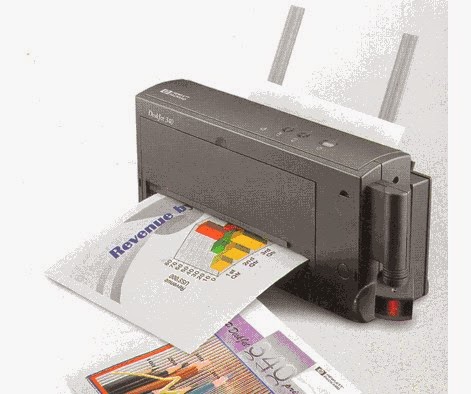
Purchasing a printer can be a daunting and sometimes confusing task. Below is additional information that will help in your purchasing decisions.

Technology

The first and foremost important consideration to consider when purchasing a printer is the technology the printer utilizes to print. Today, ink jet and laser printers are the two most popular printer technologies.
Ink Jet - Inkjet printers are an affordable and effective solution for home users and home businesses.
Laser - Laser printers are a recommended solution for businesses or networks that require speed and efficiency, and high quality resolution.
  • Inkjet vs. laser printer.

Resolution

Resolution on a printer is measured by the amount of dots per inch a printer is capable of printing. When looking at purchasing a printer, it is important to look at the DPI the printer is capable of printing.
It is also important to know that some printer manufacturers may generate their own methods through software for increasing their resolution.

Speed

Speed is another important consideration when looking at computer printers. The speed of a printer is rated in PPM, or pages per minute, and rate anywhere between 4 and 10+ PPM, depending on several factors such as if it is Black and White or Color, text only or full page. You should expect a faster PPM from a laser printer printing text than an Inkjet printer.

Ink and Toner

Ink or Toner is an important factor when purchasing a printer. Look at the below characteristics of the Ink and Toner used with the printer.
Price - By far the most important factor is price; if the printer becomes a frequently used device you may find that the price of the ink can far surpass the price of the printer. Look how much the ink will cost when it needs to be replaced.
Availability - From where can the ink or toner be purchased? Some printer manufacturers may require that you purchase the ink directly from them; and if purchased from a third-party, cause your printer warranty to become void. Verify that the ink can be purchased from a third-party and if so, from whom.
Type - See what ink or toner used with your printer, and for users considering an Ink Jet printer, see if the printer accepts separate color cartridges. Some manufacturers may include all the cartridges as one cartridge, causing you to have to purchase all the available colors for one color that may be out. In addition, see if the cartridges are just ink or ink and nozzles. Cartridges with ink and nozzles will cost more than those that have just ink.

Cost per page

Cost Per Page - The measurement of the ongoing price of the printer after its initial purchase. It is important to look at the cost per page and see how much you may be paying for the amount of printing you expect to do. You can expect to pay less for a laser printer than an ink printer when looking at Cost Per Page.

Other considerations

Paper handling - The method of how the printer handles and distributes the paper can be an important consideration when looking at printers. Many Ink Jet printers well feed paper through a slot on the top of the printer, while laser printers will use a tray method of feeding the paper to the printer. Depending upon the amount of printing you expect to have and the paper you plan on using, such as a paper envelope, will help make your decision when purchasing a printer.
Options - When purchasing a printer, look to see if the printer requires additional add-ons that may be required; this can also factor into the overall cost of the printer. These add-ons can include but are not limited to such things as cables, trays, ink, software, etc

Price range

Price range - The price range can vary depending upon the quality of the printer and brand of the printer. Below is a price range of what to expect when purchasing a printer.
Ink Jet Printer: $100 to $400
Laser Printer: $300 to $2,000

Ready to buy

Once you have reviewed the appropriate information and believe that you are ready to make a purchase of a printer, ensure that the source that you plan on purchasing the printer from is a reputable source and you have reviewed our section on what to look out for when purchasing over the Internet.
Computer Hope is ready to setup and help you with issues you may encounter during the purchase or installation of your printer, regardless if you purchase through us or another vendor.
To help support Computer Hope you can purchase directly through our well-known associate, Amazon. Click the below browse button to begin browsing through the printer section.

10 Things you don't know about NOKIA


1) The ringtone "Nokia tune" is actually based on a 19th century guitar work named "Gran Vals" by Spanish musician Francisco Tárrega. The Nokia Tune was originally named "Grande Valse" on Nokia phones but was changed to "Nokia Tune" around 1998 when it became so well known that people referred to it as the "Nokia Tune."
2) The world's first commercial GSM call was made in 1991 in Helsinki over a Nokia-supplied network, by Prime Minister of Finland Harri Holkeri, using a Nokia phone.
3) Nokia is currently the world's largest digital camera manufacturer, as the sales of its camera-equipped mobile phones have exceeded those of any conventional camera manufacturer.
4) The "Special" tone available to users of Nokia phones when receiving SMS (text messages) is actually Morse code for "SMS". Similarly, the "Ascending" SMS tone is Morse code for "Connecting People," Nokia's slogan. The "Standard" SMS tone is Morse code for "M" (Message).
5) The Nokia corporate font (typeface) is the AgfaMonotype Nokia Sans font, originally designed by Eric Spiekermann. Its mobile phone User's Guides Nokia mostly used the Agfa Rotis Sans font.
6) In Asia, the digit 4 never appears in any Nokia handset model number, because 4 is considered unlucky in many parts of Southeast/East Asia.
7) Nokia was listed as the 20th most admirable company worldwide in Fortune's list of 2006 (1st in network communications, 4th non-US company).
8. Unlike other modern day handsets, Nokia phones do not automatically start the call timer when the call is connected, but start it when the call is initiated. (Except for Series 60 based handsets like the Nokia 6600)
9) Nokia is sometimes called aikon (Nokia backwards) by non-Nokia mobile phone users and by mobile software developers, because "aikon" is used in various SDK software packages, including Nokia's own Symbian S60 SDK.
10) The name of the town of Nokia originated from the river which flowed through the town. The river itself, Nokianvirta, was named after the old Finnish word originally meaning sable, later pine marten. A species of this small, black-furred predatory animal was once found in the region, but it is now extinct.

Computer modem buying tips

Today, with the set standards of V.90, purchasing a modem is a much less confusing task and sometimes considered easy.
Before purchasing a modem, take the below into consideration. Today, with the popularity of the Internet and multimedia over the Internet, broadband is becoming widely available. If available in your area, you may want to consider purchasing a broadband solution, such as DSL available through a phone or third-party company, Cable available through your local cable provider, Satellite available through a third-party, or through a large ISP such as MSN or AOL.
If a broadband connection is not available in your area, below are some recommendations to consider when purchasing a computer modem.

Standards

Originally, when the 56k connection was introduced, there was not a set standard between two major modem manufacturers, causing there to be two different technologies: X2 and KFlex. Each of these technologies allowed for a modem to connect at higher speeds, but only if the Internet Provider supported the technology. Because of the difficulties and issues with these two different technologies, one technology emerged out of the two, called V.90. This technology allows users of any brand of modem to connect at higher speeds.
Today, all modems (purchased new) are V.90 and this is no longer a concern. Additional information and history about each of these technologies can be found on our Modem Standard page
.

Interface

Interface can be an important when considering purchasing a modem. It is important that your computer has the available connections and resources when purchasing a modem.
PCI/ISA (Internal) PCI/ISA modems are modems that are found in most computers today. These modems are installed internally into the computer with an available connection on the back of the modem for the phone line. Before purchasing an internal modem make sure the computer has the required slot. In addition, verify that your computer has the available resources. You can sometimes have difficulties installing a modem if a serial device, such as a Serial mouse or Serial PDA, is connected to the computer.
Serial (External) - A serial modem connects to the serial port located on the back of the computer. These modems are easy to install; however, they can cost more than an internal modem as you pay additional money for the plastic cover. Before purchasing a serial modem verify your computer has an available serial connection on the back of the computer; devices such as a serial mouse may already be utilizing your serial port. Some computers may have two serial ports; if this is the case and only one serial port is currently being utilized, verify that the second port can be enabled or is already enabled in CMOS.
PC card (PCMCIA) - Solution used with portable computers, PC Card modems are fairly cheap and relatively easy to install in the computer.
If a modem is already present in your portable computer but you want to upgrade or the internal modem has gone bad, it is important that you verify the pre-existing modem can be disabled before installing the new modem.
USB - A new solution, USB allows a user to install up to 127 devices on the computer and is available for PC and Mac. Before purchasing this solution, verify that your computer has a USB connection. If no USB connection is available, an additional card needs to be installed in the computer.

Connection

Internal, External, or USB modem - Today, all modems have a RJ-11 connection, which is a standard phone connection, on the modem. If important to you, verify that the modem has two available RJ-11 connections. One of these connections will connect the modem to the phone and the other can be used for an office phone. This can be very useful for a home or office computer that may need a phone next to it.
PC Card Modem - PC Card Modems used with laptop and other computers have different methods of connecting to a phone line. X-Jack and a Dongle are two of the more popular connection types used for PC Card Modems. If you are purchasing a new PC Card Modem make sure the connection works for you.

Internet availability

Unfortunately, not every location in the world has the availability to connect to the Internet. If you live in a rural area, make sure you can connect to an Internet service locally without incurring any long distance charges.

Price range

The price range of a modem is ranged by the speed of the modem, if it is external or internal, and the brand of the modem.
Internal Modem: $80 and below
External Modem: $100 to $150
USB Modem: $140 to $200
PC Card Modem: $50 to $200

Ready to buy

Once you have reviewed the appropriate information and believe that you are ready to make a purchase of a computer modem, ensure that the source that you plan on purchasing the modem from is a reputable source and you have reviewed our section on what to look out for when purchasing over the Internet.
Computer Hope is ready to setup and help you with issues you may encounter during the purchase and installation of your modem, regardless if you purchase through us or another vendor.
To help support Computer Hope, you can purchase directly through our well-known associate, Amazon. Click the below browse button to begin browsing through the modem section.

Internet on your phone using Bluetooth


Ok I found this other guide which is more easy for newbies to follow. I ahvent checked it on my 6600. Will do the testing soon. Those of you on N-gage & 3650 please try too and post a new topic outside this FAQ section about how it is.
this will work on most s60 phone I guess! it has been tested on an NGAGE and on N3650!

step 1:

Creating an access point on your phone!
tools\settings\connection\access points\options\new access point>default settings...
these are the settings u need there..
Connection Name : Anything (sugestion ADLS or PCGPRS something u remember well cuz u'll need it later!)
Data Bearer: GPRS
Access Point Name: The name you gave to your bt connection when pairing up with the computer...
Username : None
Password : No
Authentication : Normal
Gateway IP Address : 0.0.0.0
and that's all on this on this part..

then go to:

tools/settings/connection, and select GPRS
set the GPRS connection to "when available", and the access point to "none".
The settings on your fone are done! now... the next step;
Create a serial port connection from ur pc to ur phone (u've done this before if u ever used Pcsuite from nokia), this serial connection must be on everytime you want to use your pc internet connection as a gprs connection for ur phone!!
Install the software u need to surf the web (opera, netfront, agile messenger for chat, etc..)
My advise to you is to use netfront, the options are pretty cool and it uses less memory meaning u can still run other program such as agile at the same time (it crashed my 3650 when I tried to do it with opera)..
Voil? ur ready to use ur phone to surf and chat for free!!
hope this helped you and that is simple and clear!! any question u know where to post, this will be updated if many doubts come up.
ps. works with ngage arena games!!!
Enjoy!

Laptop buying tip


Laptop buying tip


Purchasing a home or business laptop can be a much more confusing and sometimes frightening experience as most users today have some experience with a desktop computer but not as many have experience with a laptop, what is properly known as a portable computer. Portable computers are an excellent solution for anyone who needs to be portable and have all of their information on a small computer. Below is a listing of help and tips when considering to purchase a laptop computer. 

What to look for

When purchasing a computer, it is likely that you are going to have a general idea of what you may like in the computer or how you would like to configure the computer. Below is a listing of the various components likely to be found in a computer, and recommendations and tips when considering any of the below components.
Battery usage
Determine how long the battery is expected to last under normal use. Many manufacturers will indicate a battery usage time but this may be at the lowest possible settings; ensure that the manufacturer clarifies what the standard battery usage life is when using the portable computer in all power modes.
Display
All portable computers come with a display. While it is almost always possible to hook up an external monitor when traveling with the laptop, the display is an important consideration. When looking at the display, ensure it is large enough for your needs. A very easy method of reducing the cost of the laptop is to reduce the size of the screen, unless price is an important consideration we highly suggest that you purchase a laptop with at least a 12" or lager LCD and recommend an LCD size of 14"
Complete buying tip information on Flat Panel or LCD solutions can be found on our flat panel buying tips page.
Drives
Drives are sometimes overlooked when considering a portable computer but can be an important consideration. Portable computers can come with various drive configurations, for example:
  • One drive bay where the CD-ROM and the Floppy drive are interchangeable. For users who utilize the floppy drive often, this may be an issue; however, for other users who do not utilize the floppy, this may be a more appropriate solution as the computer will be lighter and thinner with one drive bay.
  • Two drive bay portable computers have a floppy solution as well as CD-ROM solutions. These computers will be a less expensive computer when compared to the other solutions; however, it is the always the heaviest of all the solutions.
  • No drive bay portable computers allow for a laptop to be extremely light and utilize external drives instead of internal. Pay close attention to the price of these laptops; while it may appear to be a portable solution, many manufacturers will charge you an additional price for the external drives, which will eventually be needed.
Finally, some users may also want to consider different media solutions. For example, many laptops allow for a standard floppy drive or an LS120 drive. The LS120 drive can read floppy diskettes and at the same time be used as a backup storage device as it can store up to 120MB on a LS120 diskette. Additionally, consider the option of a DVD* or CD-RW drive as opposed to a CD-ROM drive.
*If you are considering a DVD solution, verify if the DVD comes with hardware or software decoding. Hardware decoding for laptops is accomplished by using a PCMCIA card and will add onto the overall price of the laptop.
Hard drive
Hard drives have and always will be an important consideration to think about when purchasing a new portable computer. Like a standard computer, the hard drive will be the destination of all your files and information, and if that drive is to become full, that drive must be replaced or another external drive needs to be added to the computer. When looking at the space of the hard drive, always get the maximum size hard drive, considering you will eventually always run out of space. 
Complete buying tip information on hard drives can be found on our hard drive buying tips page.
Lock
Does the portable computer include any locking system? If yes, what locking system is included? This can be important for users who are on the road.
Memory
Memory is and has always been an important consideration when looking at purchasing a computer. Determine the amount of memory included in the computer as well as verify if that memory can be upgraded in the future. The more memory the computer has, the more efficient the computer is capable or running.
Complete buying tip information on computer memory can be found on our memory buying tips page.
Modem
If a modem is required, ensure that a modem is included with the portable computer. In addition, verify if the modem is an internal or PC-CARD (PCMCIA) modem as you may require all the available PC-CARD slots in the future. PC-CARD modems are type II that for most computers akkiws for an additional type II to be connected. 
Complete buying tips and information on modems can be found on our modem buying tips page.
Network Card
If a network connection is required, ensure that a network card is included with the portable computer. In addition, verify if the network card is an internal or PC-CARD (PCMCIA) network card as you may require all the available PC-CARD slots in the future. Network PC-CARDs are type II that for most computers allows for an additional type II to be connected. 
Complete buying tips and information on network cards can be found on our network card buying tips page.
Processor
The computer processor is and will always be an important consideration when purchasing a computer. Today, with multiple CPU/Processor manufacturers, it may be more confusing as well as more cost efficient to look at the different processors available.
Complete buying tips and information on computer processors can be found on our CPU buying tips page.
Sound card
Sound cards are important when looking at purchasing a computer; however, the majority of all computer users will find that most standard sound cards will suit their needs. However, some users may enjoy purchasing more advanced sounds cards that will increase the amount of speakers that can be used and in some games and programs and the sound quality and capabilities.
When looking at the sound aspect of a portable computer, many laptops do not have sufficient sound and will require external speakers or headphones. Ensure that the sound quality meets your needs.
Weight
Weight is another important consideration when considering a portable as the computer will be carried; the lighter the portable computer, the more easy it will be to carry.
Video card
Video cards are becoming an extremely important factor when purchasing a computer. While this may surprise some, a video card can make or break a computer when it comes to playing games on the computer. Most games today require additional video memory as well as special video modes such as OpenGL. With a video card with little video memory or without these modes, the computer will be unable to play these games. In addition, the advances in video cards can dramatically increase the user enjoyment of the game being played.
Complete buying tips and information on video cards can be found on our video card buying tips page.

Brand of computer

When looking at purchasing any brand of portable computer you will hear good and bad stories. Regardless if the story is good or bad, these stories are always based on the experience of that user. While it may be true that the user had a bad or terrible experience with that computer, all computer manufacturers have had users who have had a bad experience and there is no such thing as a bad or perfect computer manufacturer. Below is a listing of various things to consider when purchasing a computer, and in some cases, how to tell the good from the bad and help allow you to purchase the portable computer that will suit your needs.
Add-ons
Some computer manufacturers may try to sell additional add-ons when purchasing a portable computer. Unless you have done your research on the additional add-on, do not consider the add-on. While in some cases it may be beneficial to get a printer, scanner, camera or PC Cards with a computer, you may be paying premium for the additional add-on, or in the case of the printer, you may have to pay premium on the ink in the future. Do you research, ensure that if you get an additional hardware or add-ons that the hardware will suit your needs and that it does not end up being something that is not going to be used. 
Free add-ons? Some computer companies may entice you into purchasing a computer by giving you free add-ons. These add-ons may be advertised as free, however, ensure or ask if the add-on price is not just being added to the overall computer price.
Documentation
While most manufacturers today are reducing the amount of documentation included with their computers, an excellent question, especially if the computer is being purchased by a new computer user, is "what documentation is included with the computer?"
All computer manufacturers will include some paper documentation or paper inserts; however, does this information include documentation about upgrading the computer in the future? How to connect the cables to the computer? Documentation on how to use the software such as the additional included software?
Note: It is important to distinguish between paper documentation and on-line documentation. On-line documentation, which is being found more today, is information that is either locally on the computer or can be accessed via the Internet. If the information is available over the Internet, see how that information looks and if it suits your needs before purchasing the computer.
Location
We use location to describe different topics. First, what is the location of where the computer is purchased: If the computer is purchased at a local retail store, can the computer be returned to that store if unsatisfactory? If the computer is purchased through mail order or directly through the computer manufacturer or reseller, where can the computer be returned if unsatisfactory?
Second, can the store location of where the computer was purchased service the computer? If not where is the closest location to where the computer can be serviced?
Third, if the computer is purchased directly from the computer manufacturer and is shipped through mail, how is it shipped? What is the time period for the computer to arrive to your destination? What happens if the computer is damaged during shipping?
Refurbished
Refurbished is a term used to describe a computer or a hardware device or component in a computer that has been used; however, it has been looked at and determined to be in working order. However, because the product has been used or purchased, it cannot be sold as new.
Refurbished computers have a lower price and are a good deal for users looking for a better deal. However, compare the price of the refurbished computer to a new computer as well as to review all of the tips on this page as all the same rules, tricks, and tips still apply.
Service
Service is an important consideration to look at when looking to purchase a computer, new or used. The service is how many companies describe the repair of a computer if it or a component within it is to become broken. Below is a listing of recommended services.
  1. Is the service onsite, meaning a technician will come to your location to replace or fix a bad component. If the service is onsite, is it for the complete time of the warranty?
  2. If onsite is not offered, what is and for how long?
  3. Can the computer be taken to a local service center? If yes, what is the closest authorized service center?
  4. What is the time frame the service takes to occur? For example, if the computer has a bad component, what is the time it takes for a technician to come onsite and replace that component, or what is the time it takes to have the computer sent in to be fixed? Finally, if that time frame is not accomplished, what is the company willing to do? Would they be willing to provide you with a loaned computer?
  5. Because the computer is a portable computer, is International Service available? This allows users who may be in a different country to have their computer fixed in that country.
Software
Software, for many computer users especially new users, is thought to be an important consideration when purchasing a new computer. Granted there is software that we highly recommend looking for when purchasing a computer, such as word processor or spread sheet program, some computer companies may over hype the software package. Below is a listing of what to look for when looking at the software included with a computer.
  1. Does the software include Microsoft Office or Corel Suite? These packages allow you to have a word processor and a spread sheet. For the majority of all users, this should be an important consideration.
  2. Is the software full versions of the software or is the software demo programs or shareware programs?
Support
While you can always contact Computer Hope for support, manufacturer support for most users is another important consideration, as if an issue arises with the computer, you must be able to be able to contact a support representative. Things to consider when looking at the support options of a computer are shown below.
  1. Is support open 24 hours, 7 days a week? If not, what are the hours?
  2. Is support open on holidays? If not, what days are it closed?
  3. What support options are available? Phone? E-mail? Web? Chat?
Upgrade
While this option may not be considered at first when purchasing a computer, it is an important consideration. Below is a listing of different options to look for when looking to upgrade a portable computer.
  1. What can be upgraded in the computer? RAM? CPU? Hard Drive? If available to upgrade, what are the maximum amounts or is it specified within documentation provided with the computer?
  2. Are the upgrades something that the end-user can do or does it require a service center to install?
Warranty
Finally, what warranty is offered by the computer manufacturer? How long is the warranty? Does the warranty cover both hardware and software issues? 
Warranty can cause frustrations for most users. We highly recommend that a computer only be considered if it has at least a one-year warranty. Many cheap computers only come with a 90 day warranty; meaning if a part goes bad, you pay for the part as well as the service. This may not be an issue for users who just need a cheap computer and are willing to replace parts and service the computer.

Scams

Unfortunately, like anything, it is possible to be tricked or for computer companies to scam you. Below is a listing of what to look for when purchasing a computer.
Get what you pay for
Make sure you are paying for what you get. It has been known that computer companies may list a processor being a specific speed but may actually have a different speed into the computer. This, unfortunately, can be very easy as any user can 'over clock' a processor, making it appear as one speed but in reality being a completely different speed. For example, you may buy a 733MHz processor but instead get a 500MHz.
To determine the processor speed, open the computer and look at the processor itself. Do not look at the processor through a software program or through BIOS as these values can be changed or tricked.
Legal software
When purchasing a computer, ensure it comes with legal software. Many end-users or small computer companies who build or sell computers may not provide you with legal copies of the software, which is illegal. Verify that the software that came with your computer is on a standard CD and not a burnt CD. A burnt or home-made CD will be a different looking CD and have a gold or green bottom. Ensure that if the software requires a license or registration number that it was included with the computer. An example of software that includes these certificates is Microsoft Office and Windows

Stolen Mobile Phones Keep It Safe

 Stolen Mobile Phones Keep It Safe
Lost and stolen mobile phones keep it safe and know what to do if you lose it


If you lose your mobile phone, or have it stolen, not only do you have to deal with the inconvenience of not having your phone, but you could be paying for someone else?s calls!
PREVENTION
Prevention is better than cure.
Reduce your phone?s appeal to thieves and assist in its recovery if it is lost or stolen:
1) Treat your phone as you would any valuable item: Even if you got your handset as a $0 upfront deal?, this does not reflect its true cost. Handsets are expensive - they can cost more than $1000.
* Be discrete. Keep your mobile on you. Never put it down in a public place or leave it unattended.
* Switch to vibrate mode in circumstances where a ring tone might attract the attention of a thief.
2) Use your phone?s security features: Your phone has security features which you can use to stop others using your phone for example, you can set a Personal Identification Number (PIN) number which must be entered before anyone can use the phone. Read your handset User Guide to find out what features your phone has and use them. Even if your phone isn?t stolen, someone might be tempted to borrow your phone and make a few expensive calls without your knowledge.
3) Name it: Some form of personal identification on your phone can deter the would-be thief. Consider engraving your initials on your phone and the battery, and ? if you have one also including your driver?s license number.
4) Know your IMEI: Every mobile phone has a unique 15-digit electronic serial number, known as the International Mobile Equipment Identity (IMEI) number. Record your phone?s IMEI number and keep it in a safe place in case your phone is lost or stolen. You can check your IMEI number by dialing *#06#.
5) Insurance: Don?t assume your phone is covered in your (or your parent?s) home contents insurance. Check and consider insuring it separately, if necessary. Remember that even if you got the phone for ‘$0 upfront?, this doesn?t mean it was free it means the cost was absorbed in the overall contract price. You may not be able to get a replacement phone for $0 upfront.
LOST OR STOLEN
If your phone is lost or stolen:
6) Notify your network carrier AND the police immediately in the event of loss or theft. Tell them your IMEI number and any other identifying features on your phone (e.g. engraved initials). Your carrier can use this number to block your phone from all networks once you report the phone lost or stolen, making it useless to any thief. Importantly, this also ensures you?re not paying for any calls made by the thief. If the handset is subsequently found, the IMEI block can be easily removed as long as you can prove you?re the original, rightful owner of the phone

Computer CD buying tips


Computer CD buying tips
Purchasing a CD-ROM drive is a relatively easy task but can involve some considerations when purchasing.

Technology

Before considering purchasing a CD-ROM, it is also good consider the other available options.
CD-R - CD-R, or CD Recordable, drives allow you to do everything that a standard CD-ROM is capable of doing with the added ability of creating your own CDs. An excellent solution for anyone that is in need of a CD-ROM and backup solution. Tips on buying these drives can be found on our CD-R and CD-RW buying tips page.
CD-RW - Like a CD-R drive, a CD-RW, or CD Read/Write, drive allows you to do everything that a standard CD-ROM is capable of, as well as read and write to a CD-RW disc thousands of times instead of once like a CD-R drive. While a little more expensive, this is another great solution for backups. Tips on buying these drives can be found on our CD-R and CD-RW buying tips page.
DVD - DVD, or Digital Versatile (video) Disc, allows a computer to not only do everything that a standard CD-ROM drive is capable of doing, but at the same time is capable of reading DVD Discs and DVD movies. For users who plan on playing games or watching movies on their computers, this is an excellent addition. Tips on buying these drives can be found on our DVD buying tips page.

Interface

The first and foremost important consideration when purchasing a CD-ROM is the interface that the CD-ROM utilizes, such as IDE, SCSI, USB, Parallel or PC-Card.
IDE/EIDE The most commonly used interface with IBM computers, IDE/EIDE/ATAPI interface is found on all IBM compatible motherboards. This interface allows for a total of four devices to be connected.
When considering purchasing an IDE/EIDE/ATAPI CD-ROM drive it is important to verify that you have the available connections for the device.
SCSI The only method with Apple computers and commonly used interface with IBM computers, the SCSI interface allows for a total of seven devices to be connected to the computer and is a faster solution than the IDE/EIDE interface.
If you are user of an IBM compatible computer, it is important that you ensure your computer has a SCSI interface already present in the computer. If not present, you need to install a SCSI card before being able to install a SCSI CD-ROM drive.
USB The USB interface allows a user to install a device and supports up to 127 devices.
Before you can install a USB CD-ROM drive, it is important for both IBM and Macintosh users to verify that a USB port is present on the computer. If not present, an interface card needs to be installed.
Parallel Solution available for PC computers, Parallel CD-ROM drives allow users that may not have the available resources or may have a portable computer to connect a CD-ROM drive.
PC-Card (PCMCIA) Excellent solution for users utilizing an older laptop that does not have a CD-ROM drive to connect a CD-ROM drive to their computer.

Transfer rates

Transfer rates can sometimes be a misleading when looking at purchasing a CD-ROM drive. The transfer rate of a CD-ROM drive is how fast a CD-ROM drive may be able to access the data from a CD. This speed is only going to be noticeable when installing a program or copying large amounts of data from a CD.

Price range

For a CD-ROM drive, not to be confused with a CD-R, CD-RW or DVD drive, the price can vary depending upon the speed and the interface the CD-ROM drive uses.
Standard IDE/SCSI CD-ROM Drive: $50.00 - $200.00
Parallel CD-ROM Drive: $150.00 - $300.00
PC Card and PCMCIA CD-ROM Drive: $100.00 - $300.00

Ready to buy

Once you have reviewed the appropriate information and believe that you are ready to make a purchase of a computer CD-ROM, ensure that the source that you plan on purchasing the CD-ROM from is a reputable source and you have reviewed our section on what to look out for when purchasing over the Internet.
Computer Hope is ready to setup and help you with issues you may encounter during the purchase and installation of your CD-ROM, regardless if you purchase through us or another vendor.
To help support Computer Hope, you can purchase directly through our well-known associate, Amazon. Click the below browse button to begin browsing through the CD-ROM section.

CD drive installation

Additional help and information about installing computer CD drives and other computer hardware can be found through our Installation section.

Backup Of Your Phone Or Laptop Battery

Increase And Regain The Original Backup Of Your Phone Or LAPTOP Battery

 Backup Of Your Phone Or Laptop Battery

receiving a lot of mails from some readers asking on how to deal with the weak battery problems of their laptops and mobile phones.
As day by day their mobile and laptop batteries are becoming more and more weak so the backup time of the battery decrease gradually.
Why Battery Backup Time Drops ?

This occurs mainly due to the rough usage and improper charging of the battery at multiple times for a very short interval or also due to the extensive charging of the battery for a long interval of time.
How To regain the original increased backup time for your laptop and phone batteries.
1. Firstly drain your phone or laptop battery completely until the device gets shutdown due to battery.
2. Now simply charge your battery for a fixed time according to the manuals provided with it at the time of purchase.
3. Repeat the step 1 and step 2 for about 2 times a day fro 3-4 days.
If you really do the steps given above you will noticeably see a change in the backup time of your battery of phone or laptop.
Leave your feedbacks as comments after applying the steps on your device.
[tags] longer battery backup , battery tweaks , increase backup

Desktop buying tips


Desktop Computer
Desktop Computer

Purchasing a home or business computer can be a big and sometimes costly decision. Below is a listing of helpful suggestions on what to look for and what to ask when purchasing a new computer.

New vs. refurbished or used

If you are looking to save money buying a used or refurbished computer can save you money. A refurbished computer is a computer that has been returned to the company has been checked out as good but cannot be sold again as new. All major computer manufacturers have a refurbished section showing all their available refurbished products. Buying one of these computers instead of a new computer can save you hundreds of dollars.
In addition to refurbished computers individuals and companies for various reasons also sell their used computers. When buying these look out for the following.
  • Verify it has no physical damage by inspecting the ports as well as the inside and the outside of the case.
  • Make sure you pay for what you are getting. See the scam section below for additional details.
  • Make sure computer comes with any CD's for the operating systems or programs that are promised to be installed.
  • Realize that many computer manufacturers will not transfer the computer warranty from the old user to you.

Mac vs. PC

The decision between buying a Macintosh and PC computer running Microsoft Windows is always a heated debate. See our Mac vs. PC document for a list of advantages and disadvantages of both of these systems if you're still not decided.

What to look for

When purchasing a computer it is likely that you are going to have a general idea of what you may like in the computer or how you would like to configure the computer. Below is a listing of the various components likely to be found in a computer and recommendations and tips when considering any of the below components.
Case
The case or chassis is often overlooked when buying a new computer. Below are some things to think about regarding the case.
  1. Do you want a desktop or tower case?
  2. Will the case fit on top of or below your desk?
  3. Will the drives be accessible or will they be positioned the way you want them to be positioned?
  4. Does the case support the standards of motherboards, for example, the ATX motherboard standard? This is important if you want to upgrade the computer in the future.
  • Case buying tips page.
CD media
Most newer computers today have an included disc burner in the computer. If you want to make your own CD's or DVD's make sure the computer supports it.
  • Standard CD-ROM buying tips
  • CD-R or CD-RW buying tips
  • DVD buying tips
Hard drive
The hard drive will be the destination of all your files and information. Make sure you get a hard drive with plenty of available space and runs at speeds that don't slow the overall computer down.
  • Hard drive buying tips
Memory
Memory is one of the more important purchasing decisions on a computer. The more memory in the computer, the more efficient the computer is capable of running.
  • Memory buying tips
Modem
Depending on how you plan on connecting to the Internet the Modem may not be that important of a buying decision. Most users today are using broadband Internet, which does not require a modem. However, if this is not available in your area make sure your computer includes a modem.
  • Modem buying tips
Network card
Almost all computers today have a network card or network option on the motherboard. The network card allows you to share files between computers in your home and connect to a broadband Internet connection.
  • Network card buying tips
Processor
The computer processor is and will always be one of the most important considerations when purchasing a computer. Today, with multiple CPU/Processor manufacturers, it may be more confusing as well as more cost efficient to look at all options for computer processors.
  • CPU and processor buying tips
Sound card
Today, the standard sound cards that are included with a computer are sufficient for almost all computer users. However, if you plan on doing sound editing or mixing make sure to look at the sound cards capabilities.
  • Sound card buying tips
Video card
For computer gaming the video card has become one of the most important factors behind memory and processor. If you plan on gaming with your computer make sure your video card GPU and video memory meets the requirements.
  • Video card buying tips

Brand of computer

There is no such thing as a computer manufacturer who has a perfect history with all its users. Therefore when it comes to recommending one brand over another it would be impossible for us to say who's better than the other. Instead we'd suggest relying off the below considerations.
Add-ons
All computer manufacturers give you the option to buy additional accessories when buying a new computer. Keep the below in mind before buying these add-ons.
  • Make sure your buying accessories you actually need. For example, almost all new computers will include a keyboard and mouse. Also, if you're upgrading from an older computer many of your older peripherals and accessories may be compatible with the new computer.
  • If you're buying your computer online, check elsewhere. Many accessories available through the computer manufacturer are sold at a premium price.
Documentation
Most manufacturers today are reducing the amount of documentation included with their computer and substituting that documentation for online documentation. Make sure the documentation found online appears to be sufficient and that software and driver downloads are available if needed.
Hardware
As mentioned in the above what to look for section, make sure the hardware included with your computer meets your needs.
Return
If the computer is purchased at a local retail store, can the computer be returned if unsatisfactory to that store or does it have to be sent to the computer manufacturer? If the computer is purchased online or through a mail order can it be returned if unsatisfactory?
Service
  1.  Is the service onsite, meaning a technician will come to your location to replace or fix a bad component. If the service is onsite, is it for the complete time of the warranty?
  2. If onsite is not offered, what is and for how long?
  3. Can the computer be taken to a local service center? If yes, what is the closest authorized service center?
  4. What is the time frame the service takes to occur? For example, if the computer has a bad component, what is the time it takes for a technician to come onsite and replace that component, or if sent in how long does it take? Finally, if that time frame is not acceptable, what is the company willing to do, for example, are they willing to provide you with a loaned computer.
Software
  1. Does the software include Microsoft Office or Corel Suite? These packages allow you to have a word processor and a spreadsheet. For the most users this should be an important consideration.
  2. Is it the full versions of the software or is the software a demo, trial, or shareware? Many companies will include programs that will expire after 30-90 days and require you to purchase the full program.
Support
While you can always contact Computer Hope for support, manufacturer support is also an important consideration as if an issue arises with the computer you must be able to contact a support representative.
  1. Is support open 24 hours, 7 days a week? If not, what are the hours?
  2. Is support open on holidays? If not, what days are they closed?
  3. What support options are available? Phone? E-mail? Web? Chat?
Upgrade
While this option may not be considered at first when purchasing a computer, it is an important consideration. When purchasing a computer make sure the hardware you may want to upgrade can be upgraded. Common upgrades for most users today include: Memory, Video card, and Sound Card.
Warranty
Finally, does the computer manufacturer offer a warranty? How long is the warranty? Does the warranty cover both hardware and software issues? 
We highly recommend that a computer only be considered if it has at least an one-year warranty. Many cheap computers only come with a 90-day warranty. Meaning if a part goes bad, you pay for the part as well as the service. This may not be an issue for users who just need a cheap computer and are willing to replace parts and service the computer themselves.

Scams

Unfortunately, like anything, it is possible to be tricked or for computer companies to scam you. Watch out for the below common scams.
  1. Make sure you pay for what you are getting - A common tactic is to overclock the processor, memory, or other component. This can be done by anyone with a little computer knowledge. For example, you may buy a 733MHz processor but instead get a 500MHz.

    To determine the processor speed, open the computer and look at the processor itself. Do not look at the processor through a software program or through BIOS as these values can be changed or tricked.
  2. Legal software - When purchasing a computer, make sure it was legal purchased and the CD or other disc and its CD-KEY is included. Many end-users or small computer companies who build or sell computers may not provide you with legal copies of the software, which is illegal and may leave you with a fine or the inability to get updates.

Computer application buying tip

Computer application buying tipPurchasing a software application or program can be a big consideration, especially when purchasing advanced and usually expensive programs such as Microsoft Office or Adobe Photoshop. When considering purchasing these programs it is important that you or your staff be familiar with the program and are sure it's going to be capable of what you need it to do.
On this page we've listed different considerations to think about before buying a computer software application

 Competition

Before buying any application make sure there is not a competing program that may be cheaper or even free. If available and something that's capable of doing what you want it to do this could save you hundreds of dollars.
A good example of such a program is OpenOffice and Corel WordPerfect that would be a competitor to Microsoft Word. Both programs are an excellent choice for a word processor but can be a considerable price difference. In the case of OpenOffice, it's 100% free.

Documentation

Make sure proper documentation is included. Many programs today will include on-line documentation that is more than sufficient. However, it is also useful to obtain a manual or user guide for the software program or application.

Licenses

If you are a company who plans on having software programs used by its employees (more than one person), you need to consider licensing options. It is required that for each computer a product is installed onto that it have a software license. If a company purchases the program and shares it with all its employees without the proper licensing, this would be illegal and can cause your company to face a criminal lawsuit.

Price

Look at your overall price and shop around. Because a software price can change often, you can sometimes save hundreds of dollars on expensive software. If possible, do not purchase directly through the company; many times, the company's price doubles a retailers price.
Be cautious of OEM software. Many resellers will sell a program as OEM, which requires you buy a computer or motherboard. OEM software is software that is included with large manufacturers' computers and only includes either just a CD or a slim manual and CD. This is not what you would find at a retail store. This option is not a bad option, it is only important that you are aware of what you are getting.

Package

Look at the overall software package. How many CDs or diskettes are included, what inserts and documentation is included, and is there any bonus or extra software included?

Media

Today, the majority of software is included on CDs and DVDs. When looking at a program, make sure you have an acceptable drive that's able to read the media, While not common today, an example of why this is important is it's better to receive one CD instead of 32 floppy diskettes.

Unlock Memory Card

 Unlock Memory Card

How To Unlock And Hack Memory Card When You Forget Your Memory Card Password


Some times it happens that you forgot the password of your memory card and you have lots of your important data in your phone.
So there are two types of methods for recovering the password of your memory card with the help of nokia phone.

For Nokia s60 1st and 2nd edition phones.

1. First Install FExplorer in your phone memory.
2. Got to drive C: , you will find a file called mmcstore
3. Send it to your pc directly and open it in notepad or rename the file.
4. At the end of the file you will find your password.
For Nokia S60 3rd Phones, Nokia N-Series and Nokia E-Series
There is almost no way yet known to hack the memory card password in case of these types of phone but there is a way to do it some of the s60 3rd edition phones and almost all the E-series phones.
The remote lock option in E-Series phone allws you to unlock your phone by sending a sms.
The only thing you have to do is to activate this feature by going to Tools | Settings | Security | Phone and SIM | Allow remote lock menu. The password of your memory card will be your remote lock message.
 Unlock Memory Card
So you have to just send a sms containing your remote lock message that will automatically change your memory card passsword.
If you have any queries in following the above procedure leave a comment here.

Phone Memory To MMC


How To Transfer Or Move All Your Messages From Your S60 Phone Memory To Memory Card Easily

Phone Memory To MMC


easily transfer any of your messages already residing in the phone memory causing your phone to process various operations at a slow speed due to the memory usage by the sms messages.
I have illustrated the entire procedure to move your sms messages in single with a four step below.

How to do it:

Make sure that Messaging memory is set to Phone Memory (Messages -> Settings -> Other -> Memory -> Phone memory).
With FExplorer, go to E:\System\Mail and delete the whole dir. Not just the content, the whole dir.
Go to Messages -> Settings -> Other -> Memory and select “MMC”
Now you will be prompted if you would like to copy the messages to your “new” location.
If you found some problem in implementing the steps listed below leave a comment here i will be glad to help you.

Buying Tips For Mobile Phone

* You may already have a budget in mind as to how much you would like to spend. Mobile Phones range from Rs. 2,500 onwards in India and Pakistan. The size and features affect the price.

TALK TIME

* Now come to the talk time, The talk time of the mobile phone is the number of minutes you can talk with a fully charged standard battery. The talk time with a standard battery varies between 100 minutes to 750 minutes. Approximately 700 mAh will be able to give you a talk time of 4 to 6 hours. A longer talk time allows you to go without recharging the batteries for longer.

BATTERY TYPE

* There are 3 types of batteries available in the Indian and Pakistan market.
LITHIIUM POLYMER AND LITHIUM IONNICKEL METAL HYDRITE Slimmer larger power capacity. Heavier and less power capacity Does not discharge when phone is switched off Discharges when the battery is not in use Can be recharged without capacity reducing Battery's capacity reduces over time due to frequent recharging. More expensive More economical if your usage is low Phone cost- Rs. 3, 000 to Rs. 50,000Phones cost- Rs. 4, 000 to Rs. 7,000

PHONE SIZE

* This defines the size of the phone. There are two mobile phones categories we have on the web site: Small (Palm Size) and Medium Size.
SMALL (PALM SIZE) MEDIUM SIZE
Easy to carry, keep in a pocket or in a purse
Rs. 3,095 to 40,099
Larger and bulkier than small phones ..........
Rs. 3,895 to Rs. 45, 675
If you are concerned about the size of your mobile phone, and need to carry it in your top pocket, you would prefer a Small Size phone.

OTHER FEATURES

* FEATURE WHAT IS IT? WHAT IT MEANS TO YOU Dual Band
*
A switch that allows you to switch between transmissions that are adopted by different countriesYou cannot use a phone in a country where your GSM is not supported. If you are global traveler and would like to use your handset in different countries, you would need a phone with a dual band.Enhanced Full Rate Speech (EFR) Reduces the amount of background noise that gets transmitted along with your voice when you talk on the phone. If you live in a noise-polluted city, this feature is a must. General Packet Radio Service Allows you to be continuously connected to higher capacity Internet-based services You can use all the Internet applications like web browsing, email, chat, telnet, File Transfer Protocol (FTP) over the mobile network. Inbuilt Answering Machine Allows you to record a personal message, which automatically answers calls that you were unable to receive and allows the caller to leave a verbal message for you. You can retrieve these voice messages at your convenience. Infrared Port Enables wireless connections between the computer and the mobile phone devices You can use IR to send and receive phone book entries (business cards) and reminder notes. Internal Antenna and BatteryAn in-built antenna and battery in the handset.Makes the phone more compact and also gives the handset a very sleek and elegant look Internal Vibrating Alert This feature can be programmed to physically vibrate when a call is received. Useful when you receive calls in places where you can't keep the ringer on. For e.g. in a theatre, or in an important conference / meeting. Multimedia Messaging ServiceAllows you to send and receive rich media messages comprising of text, sounds, images and video to and from MMS capable handsets. MMS will add colourful images, animations and sound clips to your messages.PDA EnabledCan do some functions of a PDA such as organising dates/contacts, memos, etc.Enables you to carry out the functions of a PDA as well.Picture MessagingIt is a graphic that can be used with a short message or used to replace a short message.A creative way of communicating with your friends.Short Message Services With this service you can send and receive text messages to or from other mobile phone users This is very useful when you need to send information to a person who is unable to answer your call or communicate with another mobile phone user. Voice Dial A voice recognition system that allows you to dial a telephone number stored in your phone memory by just saying the person's name.Voice dial is very convenient and useful in places where you cannot see the key pad or while driving. It also assists speedy dialing of telephone numbers

Unlock Password Protected Memory Card

How To Unlock The Password Protected Memory Card For Your Mobile Phone

Memory Card
when one my friend forgot the password of his memory card of his mobile phone and he have some very important data in the memory card which he want to recover, he tried almost everything then he lost hope and then asked the mobile phone company to find the way to recover the data from the memory card.
But you don’t worry if you are having the same problem…as now there is a much simple and easy way out.

Requirement: You need a file explorer like FExplorer which you can download from here.

How to Unlock MMC card:

Method 1:

Insert card into your phone but don’t access it through phone.
Run FExplorer and Open the path C:\system.
You will find a file called mmcstore ,rename the file mmcstore.txt
Copy that file(mmcstore.txt) to your pc and open that file in notepad.
You will find your password in that file.

Method 2:

Applicable to all nokia phones which are s60 2nd or s60 3rd edition series phones.check out here.
If you still have any problem in finding your password for your memory card ,leave a comment here.

 
Powered by Blogger.